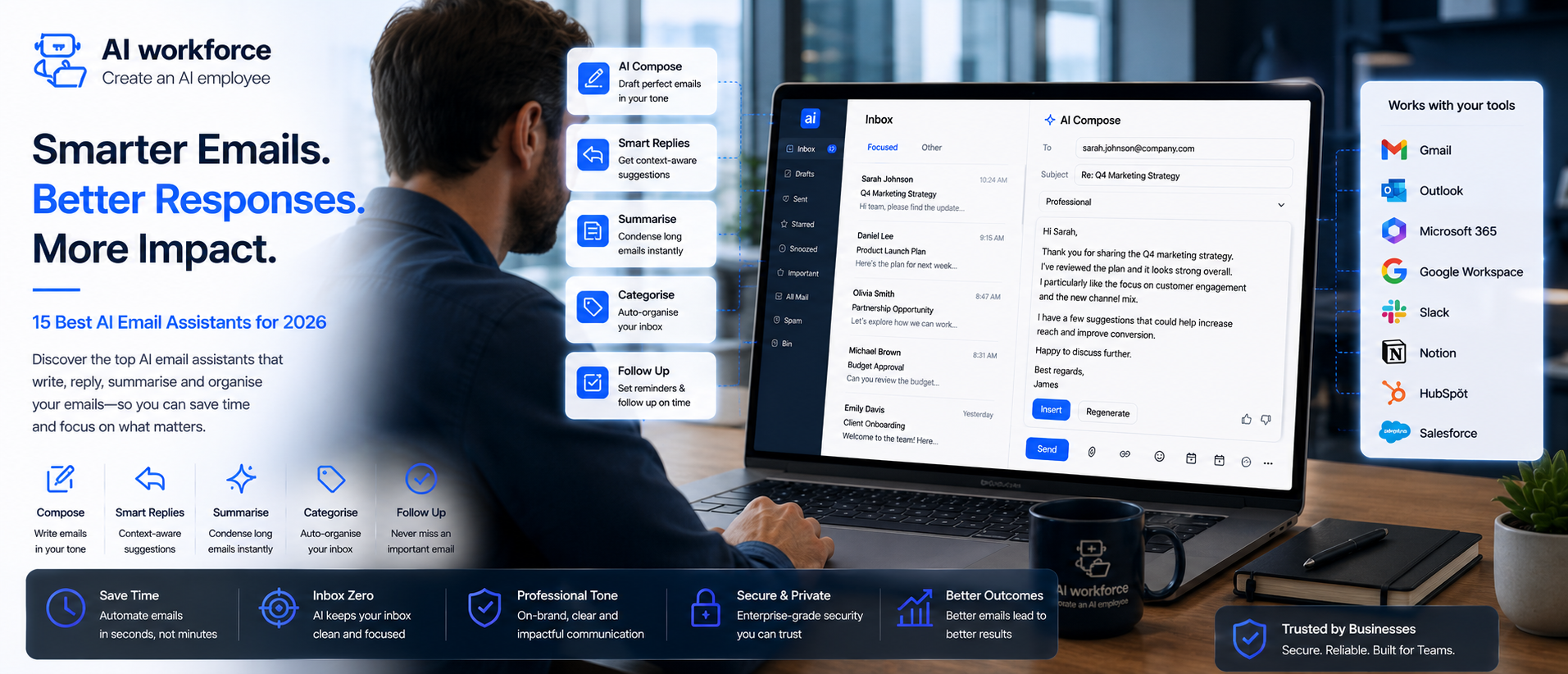
15 Best AI Email Assistants in 2026
Posted On: July 31, 2026
Last updated: August 2026 · Written by Seth Ayush, Co-Founder of AI Workforce · Reviewed by Clara Miller, Content Marketing Specialist
An AI email assistant in 2026 does a lot more than flag spam: it drafts replies, sorts what matters, and quietly handles inbox management while you focus on everything else. This guide compares 15 of the tools worth considering, from AI built directly into Gmail and Outlook to dedicated AI-native email clients and shared-inbox platforms for teams, and shows how to use AI without losing control of your own inbox.
Quick Answer: The right AI email assistant depends on which email platform you use and what you actually want automated. Gemini in Gmail and Microsoft Copilot for Outlook suit anyone wanting AI built directly into the client they already use. Superhuman and Shortwave lean into speed and an AI-native inbox experience. Fyxer AI and Mailbutler add AI drafting and triage on top of your existing Gmail or Outlook setup. Front, Missive and Spark handle shared team inboxes well. The safest approach is to scope permissions to what a workflow actually needs and keep a human reviewing anything sensitive before it sends.
At a Glance
What it is: software that drafts replies, triages incoming mail, summarises threads and searches your inbox using an AI model, either built into Gmail/Outlook or layered on top
What matters most: fit with your existing email platform first, the specific AI functions you need second, permissions and data handling third
Where AI saves most time: routine drafting, sorting, thread summarising and finding old messages by description rather than exact search terms
What should stay human-led: sensitive or relationship-critical messages, anything auto-send, and any priority call with real consequences if it's wrong
Biggest risk: an assistant that can silently hide, delete or deprioritise an important email without an audit trail or an easy way to review what it did
What's Covered
The Tools
How It Works
Category & Buying
15 AI Email Assistants Compared
This table gives a compact, at-a-glance comparison before the detailed profiles below, which cover permissions, pricing and platform fit in full. Features and pricing change; confirm current details directly with each vendor.
Tool | Best for | Main AI function | Main limitation |
|---|---|---|---|
Gemini in Gmail | Google Workspace users | Drafting, summarising | Tied to the Google Workspace ecosystem |
Microsoft Copilot for Outlook | Microsoft 365 users | Drafting, triage, summarising | Tied to the Microsoft ecosystem |
Superhuman | High-volume Gmail/Outlook users | Proactive triage, drafts, follow-up | Premium pricing |
Shortwave | Gmail users wanting an AI-native client | Search, drafting, auto-triage | Gmail-first; Microsoft 365/Exchange not directly supported |
Fyxer AI | Gmail/Outlook add-on drafting | Drafting, labelling, meeting notes | Add-on, not a full client |
Mailbutler | Staying inside Gmail/Outlook | Drafting extras, scheduling, tracking | Plugin-level, not deep triage |
SaneBox | Reducing inbox clutter | Priority sorting, filtering | Limited drafting capability |
Boomerang | Scheduling and follow-up | Send-later, follow-up reminders, AI writer | Narrower feature set than a full assistant |
Canary Mail | Privacy-conscious users wanting local inbox intelligence | On-device triage, drafting, encryption | Smaller ecosystem than major platforms |
Zoho Zia (Zoho Mail) | Zoho Workspace users | Drafting, summarisation, sentiment | Best value inside the Zoho suite |
Front | Team and shared inboxes | Shared inbox + grounded AI replies | Built for teams, not solo use |
Missive | Small team shared inboxes | Collaboration, AI drafting, internal notes | Smaller AI feature set than Front |
Spark Mail | Teams wanting a lighter shared inbox | Drafting, smart inbox, delegation | Team AI features sit on paid tiers |
HubSpot Sales Hub email tools | Sales teams inside a CRM | Drafting, sequences, tracking | CRM/sales-workflow option, not a general inbox assistant |
Meli by Gmelius | Small businesses on Gmail | Drafting, sorting, scheduling | Gmail only; Outlook on waitlist |
Methodology: assessed against public vendor documentation and current pricing pages as of August 2026, not hands-on testing of every platform. Product claims about outcomes or accuracy, as opposed to feature availability, were not treated as independent evidence.
Named Tool Profiles
Gemini in Gmail
Best for: anyone already on Google Workspace. What it does: drafts and summarises email natively inside Gmail, no separate app required, and its AI note-taking extends into Google Meet for context on related threads. Permissions: follows your existing Google Workspace account access rather than a separate connection. Main limitation: value depends on staying inside the Google ecosystem.
Microsoft Copilot for Outlook
Best for: organisations on Microsoft 365. What it does: lives directly in the Outlook ribbon, drafting replies and summarising threads without leaving the app. Permissions: inherits your organisation's existing Microsoft 365 access controls and sensitivity labels. Main limitation: strongest where a team is already fully on Microsoft 365.
Superhuman
Best for: high-volume Gmail or Outlook users who don't want to switch clients, plus anyone wanting a fully AI-native inbox. What it does: Superhuman now spans both models. Its Email Assistant works directly inside an existing Gmail or Outlook inbox, automatically labelling messages, archiving selected low-priority mail, preparing draft replies and resurfacing follow-ups, without auto-sending anything. Its separate Superhuman Mail client provides the deeper AI-native email experience for anyone willing to switch. Permissions: requires read/write inbox access via account connection. Main limitation: premium pricing relative to add-on tools.
Shortwave
Best for: Gmail users wanting an AI-native email client rather than an add-on. What it does: AI search that finds messages by description, automatic triage, and drafting built around the inbox itself rather than bolted onto it. Permissions: full inbox access, since it functions as your primary client. Main limitation: built around Gmail; Microsoft 365 and Exchange are not currently supported directly, and Outlook.com/Hotmail/Live only work through forwarding with limitations.
Fyxer AI
Best for: teams wanting drafting and labelling added to an existing Gmail or Outlook inbox without switching clients. What it does: reads and categorises email, generates draft replies rather than sending them, tracks follow-ups and supports scheduling. Permissions: connects through Google and Microsoft APIs using OAuth 2.0. Main limitation: an add-on layer, not a replacement inbox experience.
Mailbutler
Best for: people who want AI extras without changing their existing Gmail or Outlook setup. What it does: adds AI-assisted drafting, send-later scheduling and read tracking directly into the interface you already use, via a plugin. Permissions: plugin-level access to compose and read functions. Main limitation: lighter on deep triage than a dedicated assistant.
SaneBox
Best for: anyone whose main problem is inbox clutter rather than drafting. What it does: learns which senders matter and automatically routes lower-priority mail out of the primary inbox, with a digest for anything moved. Permissions: works across most major providers via IMAP. Main limitation: limited drafting capability compared with assistant-first tools.
Boomerang
Best for: scheduling sends and staying on top of follow-ups. What it does: send-later scheduling, follow-up reminders when a message goes unanswered, and an AI writing assistant for shorter drafts. Permissions: compose and send access via account connection. Main limitation: a narrower feature set than a full inbox assistant.
Canary Mail
Best for: privacy-conscious users wanting local inbox intelligence alongside AI-assisted drafting. What it does: handles inbox indexing and triage on-device, sending only limited selected content to cloud AI for generation, and supports PGP/end-to-end encryption. Permissions: full inbox access as a client app. Main limitation: a smaller ecosystem and integration set than Gmail or Outlook themselves.
Zoho Zia (Zoho Mail)
Best for: businesses already using Zoho Workspace. What it does: generates and suggests email content, summarises threads, and Zia Insights adds sentiment analysis, all built into Zoho Mail. Permissions: inherits Zoho Workspace account permissions. Main limitation: best value is realised inside the wider Zoho suite rather than standalone.
Front
Best for: teams running a shared inbox such as support@ or sales@. What it does: assigns messages, adds internal notes, and its AI suggests replies based on historical conversations and knowledge sources, alongside summarisation and customer-context assistance. Permissions: shared mailbox access with role-based controls. Main limitation: built specifically for teams, more setup than a solo inbox needs.
Missive
Best for: small teams wanting collaboration features alongside AI drafting. What it does: shared drafts, internal team chat next to email threads, and AI-assisted replies. Permissions: shared mailbox access with per-user controls. Main limitation: a smaller AI feature set than Front's team analytics.
Spark Mail
Best for: teams wanting a lighter shared inbox than Front or Missive. What it does: a smart inbox that prioritises messages, AI-assisted drafting, and delegation features for team accounts. Permissions: full inbox access, team features on paid tiers. Main limitation: deeper team AI features sit behind a paid plan.
HubSpot Sales Hub email tools
Best for: sales teams who want email AI tied directly into their CRM. This is primarily a CRM/sales-workflow option rather than a general-purpose inbox assistant. What it does: AI-assisted drafting, email sequences, and open/click tracking inside HubSpot. Permissions: CRM-level access alongside inbox connection. Main limitation: most useful when HubSpot is already your CRM of choice; for outbound sequencing at volume, see our dedicated cold email software guide.
Meli by Gmelius
Best for: small businesses using Gmail that want a lighter AI inbox assistant. What it does: drafts replies, sorts incoming email and supports meeting scheduling inside Gmail. Platform support: Gmail is available now; Outlook support is currently on a waitlist. Main limitation: a younger product with a shorter public track record than Gmail, Outlook, Superhuman or Front; verify current features directly before relying on it for a live workflow.
Best AI Email Assistant by Use Case
Need | Strong starting point |
|---|---|
Gmail, staying native | Gemini in Gmail |
Outlook, staying native | Microsoft Copilot for Outlook |
Inbox triage specifically | SaneBox or Superhuman |
Drafting quality | Fyxer AI or Superhuman |
Follow-up reminders | Boomerang |
AI-native email client | Shortwave |
Teams and shared inboxes | Front, Missive or Spark |
Solo professionals | Superhuman or Mailbutler |
Executives with high volume | Superhuman or Microsoft Copilot for Outlook |
Small businesses on Gmail | Meli by Gmelius or Mailbutler |
Privacy-conscious users | Canary Mail |
Sales teams inside a CRM | HubSpot Sales Hub email tools |
This is a starting shortlist, not a universal ranking. Trial two or three directly against your own inbox before committing.
Best AI Email Assistants for Gmail
Gemini in Gmail works natively inside Gmail itself, no separate app required, handling drafting and summarising within the same window you already have open. Beyond the native option, several verified third-party tools integrate directly with Gmail via OAuth: Superhuman, Shortwave, Fyxer AI, SaneBox, Mailbutler and Boomerang all connect properly to a Gmail account rather than working around it.
A tool should not count as "for Gmail" just because emails can be forwarded into it. Genuine Gmail support means a direct connection through Google's supported APIs and OAuth, working search across your actual mailbox, and drafting that has access to real thread context, not a workaround built on forwarding or browser automation.
Best AI Email Assistants for Outlook
Microsoft Copilot for Outlook takes the native approach from the Microsoft side: it lives directly in the ribbon, and an assistant built this way never asks you to leave the app to get a summary or a suggested reply. For anyone on a Microsoft 365 account, this kind of integration tends to be the most seamless, since Copilot inherits your organisation's existing permissions and sensitivity labels rather than requiring a separate connection.
Third-party tools also support Outlook, though not always with the same feature parity as Gmail: Fyxer AI, Mailbutler, Superhuman and Boomerang all connect to Outlook accounts, but calendar integration, triage depth and summarisation quality can differ from their Gmail equivalents. Not every AI email client that works with Gmail supports Microsoft 365, either: Shortwave, for example, remains Gmail-first and does not currently support Microsoft 365 or Exchange directly. Don't assume a tool behaves identically on both platforms; check the vendor's current Outlook-specific documentation before relying on it.
AI Assistant vs Basic Autoreply
Most inboxes have had basic autoreply for years; what's different now is an AI model that actually understands what an email is asking for, not just matching keywords. Generative AI writes a genuinely usable first draft, and AI built natively into the email client itself works faster than a bolted-on plugin ever could.
AI features worth paying attention to include tone matching, thread summarisation and priority sorting, the kind of capability that used to need a dedicated tool for each one. When the AI reads an incoming email correctly, the reply it drafts needs less editing than a generic template would.
AI Inbox Management
AI Workforce Insight: AI inbox management is useful when it helps prioritise and route messages. It becomes risky when a tool can silently hide, delete or deprioritise important email without an audit trail or a review path.
Keep your inbox under control by letting AI handle the repetitive parts, sorting, snoozing and archiving, while you handle anything that actually needs judgement. Set up a few rules once and most of the future sorting happens automatically from there.
A split inbox, one view for what needs a reply today and another for everything else, works well for people who get too many messages to read every single one in order. Used this way, inbox management tools turn constant new mail into something that feels manageable within a few minutes each morning, provided you can always see what was moved and why.
What Is AI Email Triage?
AI email triage sorts the pile the moment it lands, distinct from older rules-based filtering that only matches sender or subject keywords. A rules-based filter moves mail from a known sender into a folder; AI classification reads the actual content and context of a message to judge urgency, even from a sender it has never seen before.
Sender and context interpretation: the model weighs who sent it, what it's about and how it relates to recent threads, not just a static rule
Priority detection: urgent client messages surface first, newsletters and receipts drop lower automatically
Routing: messages move to the right folder, label or team member based on content, not a fixed keyword match
Escalation: some tools can flag a message for immediate attention rather than simply reordering the inbox
False positives: an urgent message misclassified as low priority is the main failure mode worth watching for, especially in the first few weeks of use
Missed-important-email risk: any triage system should make it easy to check what landed in a lower-priority view, not just what surfaced at the top
Some tools let you adjust how aggressively messages are prioritised or auto-filed; where that control exists, start conservatively and review what gets deprioritised before expanding automation.
AI Add-on vs AI-Native Email Client
AI add-on
Sits inside Gmail or Outlook as a plugin or connected app
Keeps the interface you already know
Faster to trial, easier to remove
Examples: Mailbutler, Fyxer AI, Boomerang
AI-native email client
The inbox itself is designed around AI search, drafting and triage
Deeper integration between search, drafting and organisation
Requires migrating your workflow to a new app
Examples: Shortwave, Superhuman Mail
Superhuman spans both models: its Superhuman Mail product is an AI-native email client, while its newer Email Assistant can also work directly inside an existing Gmail or Outlook inbox rather than requiring a switch.
Can AI Draft Replies and Handle the Basics?
Draft quality has improved substantially: many newer assistants can use thread context, writing preferences and, in some cases, previous correspondence to prepare more relevant drafts. AI-generated drafts can save real time on routine messages, but tone, factual accuracy and relationship-sensitive wording should still be reviewed before sending, particularly on anything that wasn't a fully routine reply.
Let AI handle every email that's clearly routine, and step in yourself for anything that needs a human judgment call. Reviewing the existing thread before drafting matters too: a good assistant reads the last several messages for context, not just the one you're replying to, so the suggested reply actually fits the conversation.
Can AI Email Assistants Handle Follow-Ups?
Most of the tools compared in this guide handle some form of follow-up on existing correspondence:
Remind you when someone hasn't replied to a message you sent
Prepare a follow-up draft ready to review and send
Resurface unanswered conversations that would otherwise sit forgotten
Extract follow-up tasks from a thread automatically
Flag deadlines mentioned inside a conversation
Coordinate with calendar or task tools, where the integration supports it
This is follow-up on your own existing correspondence, not automated prospecting sequences. For outbound sending at volume, see our dedicated cold email software guide instead.
AI Email Assistant vs AI Executive Assistant
AI email assistant
Inbox-specific
Triage, drafting, summarisation
Search across email history
Follow-up reminders within the inbox
AI executive assistant
Scheduling and calendar management
Meeting prep and briefings
Cross-tool admin, not just email
Stakeholder coordination
Some tools span both categories, handling email alongside your calendar and task list. That distinction matters: a tool that only touches email is still useful, but one that spans your whole day is a bigger commitment to set up properly. See our dedicated guide to AI executive assistant tools if scheduling and cross-tool admin are the main workload, not just inbox management.
AI Email Assistant vs Cold Email Software
AI email assistant
Manages an existing inbox
Supports inbound and routine email
Drafts and prioritises what's already arrived
Cold email software
Outbound prospecting at volume
Sequences and mailbox rotation
Deliverability infrastructure and reply detection
These categories look adjacent because both involve email and AI, but they solve different problems. See our dedicated guide to cold email software if outbound sending is what you actually need.
AI Email Assistant vs Email Marketing Platform
AI email assistant
Individual or team inbox productivity
One-to-one or small-group correspondence
Email marketing platform
Newsletters and lifecycle campaigns
Subscriber lists and broadcast sending
None of the 15 tools compared in this guide are built for bulk marketing sends. If that's your goal, you want a dedicated email marketing platform, not an inbox assistant.
Permissions and Privacy
Inbox access should be scoped carefully: read-only for some integrations, full read-and-write for others. Before connecting a real inbox, check each of these directly with the vendor:
OAuth scope: exactly which parts of the mailbox the connection covers
Read versus write access, and whether send permission is separate from drafting permission
Archive or delete permission, and whether that's reversible
Attachment access, since attachments often carry more sensitive data than the message body
Shared mailbox exposure, if the tool is connected to a team inbox rather than a personal one
Admin revocation: how quickly access can be pulled if something looks wrong
Audit logs: whether you can see what an AI feature actually did, not just what it drafted
Retention: how long the provider keeps your email content after you disconnect
Model training: whether your email content is used to train or improve the provider's wider models, and whether that can be turned off
Processing location and data protection agreement (DPA) availability, relevant for any UK business handling personal data
An email assistant should only receive the permissions required for the workflow you are actually using. A tool that behaves like your inbox normally does, just faster, with least-privilege access by default, is usually the safest one to hand real access to.
How to Choose an AI Email Assistant
Work through this before committing to a tool:
Gmail or Outlook, or does it need to work across both?
Do you need triage, drafting, or both?
Are follow-up reminders and scheduling part of what you need?
How good is search across your actual email history?
Does it draft only, or can it take action such as archiving or sending?
Are there approval controls before anything sends automatically?
What OAuth scope does it request, and can that be narrowed?
Can you export or review an audit log of what it did?
What's the data retention and model-training policy?
Does it support team or shared inboxes if you need that?
What does it actually cost at your real usage level, not just the entry price?
How much setup and configuration does it need before it's useful?
Team and Shared Inbox Tools
A shared inbox, support@ or sales@ rather than a named person, needs different features entirely: assignment, internal notes and a clear record of who replied to what. Front, Missive and Spark handle this without turning into a second project management tool nobody wanted.
Task handoff and email management increasingly overlap: turn a message into a task with one click, and it shows up wherever your team already tracks work rather than living only in one place. Email scheduling rounds this out nicely, queuing a reply to send at a sensible hour instead of the moment you happen to write it, which matters more than people expect once a team spans more than one timezone.
A personal inbox gets different treatment from a shared team one, too: tone matters more on a personal account, and false positives on urgency are more disruptive when nobody else is watching the same queue.
Metrics That Matter
Don't judge an AI email assistant purely on emails processed or drafts generated; both are activity counts, not evidence it's actually working. A more useful set to track:
Inbox triage time, from opening the inbox to reaching zero unread priority items
Time to first useful draft on a routine reply
Correction rate, how much of a drafted reply you actually have to change before sending
Missed-priority messages, anything important that landed in a low-priority view and needed manual rescue
Follow-up completion rate on messages the tool flagged for a reminder
Review time spent checking AI-drafted or AI-sorted mail before trusting it fully
Sensitive items correctly escalated rather than auto-filed
Net time saved per week once review time is subtracted out
Common Risks
Set against the genuine time savings, it's worth being specific about how these tools fail in practice:
Wrong prioritisation, an urgent message treated as routine
Hiding an important email inside a low-priority view with no easy way to notice
Hallucinated reply content, a drafted response that states something inaccurate as fact
Accidental auto-send, where an action-taking tool sends before a human reviews it
Attachment exposure through overly broad permission scope
Excessive mailbox permissions granted for a workflow that only needed read access
Retention or model-training uncertainty around where your email content actually goes
Automating a genuinely sensitive message that needed a person's judgement
Wrong follow-up context, a reminder or draft based on an outdated version of the thread
Duplicated actions, such as two reminders or two drafts for the same message
Related Guides
AI email assistants sit alongside several other parts of the AI productivity stack covered elsewhere on this site:
We'd also link a dedicated AI personal assistant guide and an AI meeting assistant guide here once those pages have confirmed live URLs.
Frequently Asked Questions
What is an AI email assistant?
An AI email assistant drafts replies, triages incoming mail, summarises threads and helps search your inbox, using an AI model rather than simple keyword-based rules. Some sit as add-ons inside Gmail or Outlook; others are AI-native email clients built around these functions from the ground up.
What are the best AI email assistant tools in 2026?
Gemini in Gmail and Microsoft Copilot for Outlook are strong native options for platform integration; Superhuman and Shortwave for a fully AI-native inbox; Fyxer AI and Mailbutler for adding AI to an existing Gmail or Outlook setup, and Front, Missive and Spark for team and shared inboxes. See the full comparison table above for all 15.
Can AI automatically prioritise emails?
Yes. AI triage reads the content and context of an incoming message to judge urgency, then sorts, routes or surfaces it accordingly, rather than relying on fixed sender or keyword rules. Start with conservative settings and review what gets deprioritised for the first week or two before trusting it fully.
Can AI follow up on unanswered emails?
Most of the tools in this guide can remind you when a message hasn't had a reply, prepare a follow-up draft, and resurface a forgotten conversation. This applies to your existing correspondence, not automated outbound prospecting; see the follow-up section above for the distinction.
What is an AI-native email client?
An AI-native email client is built around AI search, drafting and triage from the ground up, rather than adding AI features on top of Gmail or Outlook. Shortwave and Superhuman Mail are examples; using one usually means migrating your workflow to a new app rather than keeping your existing inbox.
What's the best AI email assistant for small businesses?
Meli by Gmelius and Mailbutler both suit small businesses well, particularly on Gmail. Meli currently supports Gmail only, with Outlook on a waitlist, so check platform support against what your business actually uses.
What's the best AI email assistant for a high-volume inbox?
Superhuman is built specifically for high email volume, whether used as its Email Assistant inside an existing Gmail or Outlook inbox or as the full Superhuman Mail client. Microsoft Copilot for Outlook is a strong native alternative for high-volume Microsoft 365 users.
What permissions should an AI email assistant have?
Only the permissions required for the workflow you're actually using; read-only access is often enough for triage and search, while drafting and sending need write access. Check OAuth scope, retention, model training policy and whether an audit log is available before connecting a real inbox. See the permissions section above for the full checklist.
What's the difference between an AI email assistant and cold email software?
An AI email assistant manages an existing inbox, drafting and prioritising inbound and routine correspondence. Cold email software handles outbound prospecting at volume, with sequencing, mailbox rotation and deliverability infrastructure. See our dedicated cold email software guide for that category.
What's the best AI email assistant for Gmail?
For Gmail users wanting to stay native, Gemini in Gmail is one of the strongest starting points, since it works directly inside Gmail with no separate app. Superhuman, Shortwave, Fyxer AI and SaneBox all connect properly via OAuth if you want deeper triage or drafting than the native tool offers.
What's the best AI email assistant for Outlook?
For Microsoft 365 users wanting a native option, Microsoft Copilot for Outlook is one of the strongest starting points, since it inherits your organisation's existing Microsoft 365 permissions. Fyxer AI, Mailbutler, Superhuman and Boomerang also support Outlook, though feature depth can differ from their Gmail equivalents.
What is AI email triage?
AI email triage classifies incoming mail by reading its actual content and context, not just matching sender or subject keywords, then sorts, routes or escalates it accordingly. See the dedicated section above for how this differs from older rules-based filtering.
Which AI email assistants work well for teams?
Front, Missive and Spark are built specifically for shared inboxes, with assignment, internal notes and reporting on top of AI drafting. A tool built for a single personal inbox generally isn't the right fit for a support@ or sales@ address.
Do AI email assistants read all of my email?
That depends on the OAuth scope you grant. Some tools request read-only access to specific folders; others need full read-and-write access to draft and send on your behalf. Check the vendor's current documentation on scope, retention and model training before connecting a real inbox.
Should AI be allowed to send email automatically?
Only for genuinely low-risk, fully routine messages where you've reviewed the pattern for a while and trust it. For anything relationship-sensitive, ambiguous, or with real consequences if it's wrong, keep a human reviewing the draft before it sends.
Is an AI email assistant the same as an AI executive assistant?
No. An AI email assistant is inbox-specific: triage, drafting, summarisation and search. An AI executive assistant typically covers scheduling, meeting prep and cross-tool admin as well as email. See the comparison section above.
Key Takeaways
Both major email platforms now have genuinely built-in AI options, alongside a wide range of third-party add-ons and AI-native clients
AI handles drafting, sorting and triage well for routine mail, but drafts should still be reviewed for tone and accuracy before sending
AI inbox management is most useful with a visible audit trail; a tool that can silently hide or delete mail without one is a real risk
A team inbox needs different features than a personal one: assignment, internal notes and shared reporting
Permissions matter as much as features; scope access to what a workflow actually needs and check retention and model-training policy
Search and history matter as much as drafting for saving real-time day-to-day
The best options fit into how you already work rather than replacing it wholesale
This article reflects publicly available vendor information as of August 2026. Features, pricing and permissions change; confirm current details directly with each vendor before connecting a live inbox.
Ready to Take Control of Your Inbox?
If you're still typing every reply from scratch, it's worth seeing how much of that can be automated without losing your own voice or handing over more access than you need.
About the Author
Seth Ayush is Co-Founder of AI Workforce, a British AI company building AI agents for UK businesses. He works on how AI Workforce's own workflow agents are designed, tested and deployed, with a focus on permissions, data handling and review controls before a system is trusted with real inbox access.
Clara Miller is a Content Marketing Specialist at AI Workforce. She reviewed this guide for clarity, structure and alignment with how UK small businesses actually evaluate and buy productivity software.
Reviewed: August 2026